Every tool you needEvery tool you need
Block the apps that pull at you, add friction where you want a pause, read the Word, and do it together. Here's how each part works.
Soft blocks
A pause to break the habit
A pause to break the habit
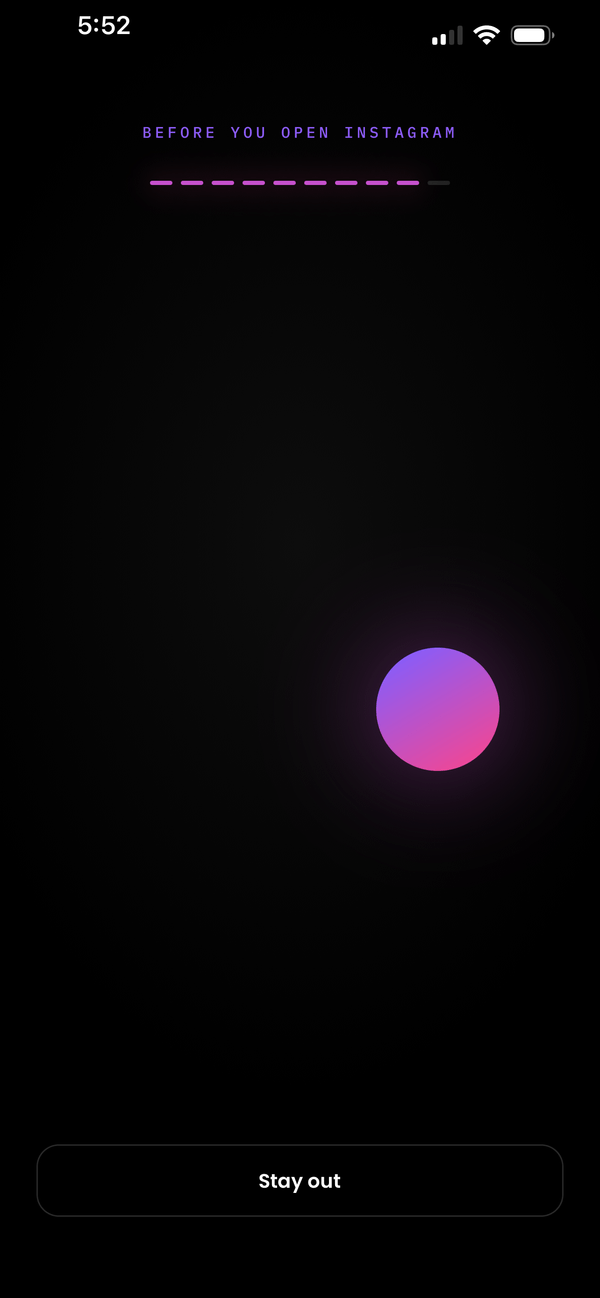
Most of the time you open an app without deciding to. A soft block puts a moment between the tap and the feed: a short challenge, then a nudge toward Scripture. If you still need the app, it opens for as long as you chose.
14 kinds of friction
Breathe, pray, name something you’re grateful for, solve a maze, and more. Use one, alternate, or shuffle them.
Pointed at the Word
After the friction, a prompt sends you to the next passage on your Reading List. Or write your own message to face.
A window, not a free pass
The app opens for 1, 5 or 15 minutes, or you choose each time. Then the block comes back.
Couples check-in
If you want, your partner is told when you go through.
Hard blocks
When you need a real wall
When you need a real wall
Some apps need more than a pause. A hard block shuts them away completely, and because it runs on your phone it holds even without internet. You decide how hard it is to get back out.
Three tiers
Open lets you end the block any time. Guarded makes you wait out a countdown of 1 to 15 minutes first. Sealed holds until the time runs out.
Five emergency passes
For a real emergency, a pass lifts any block, even a Sealed one.
A wall that says something
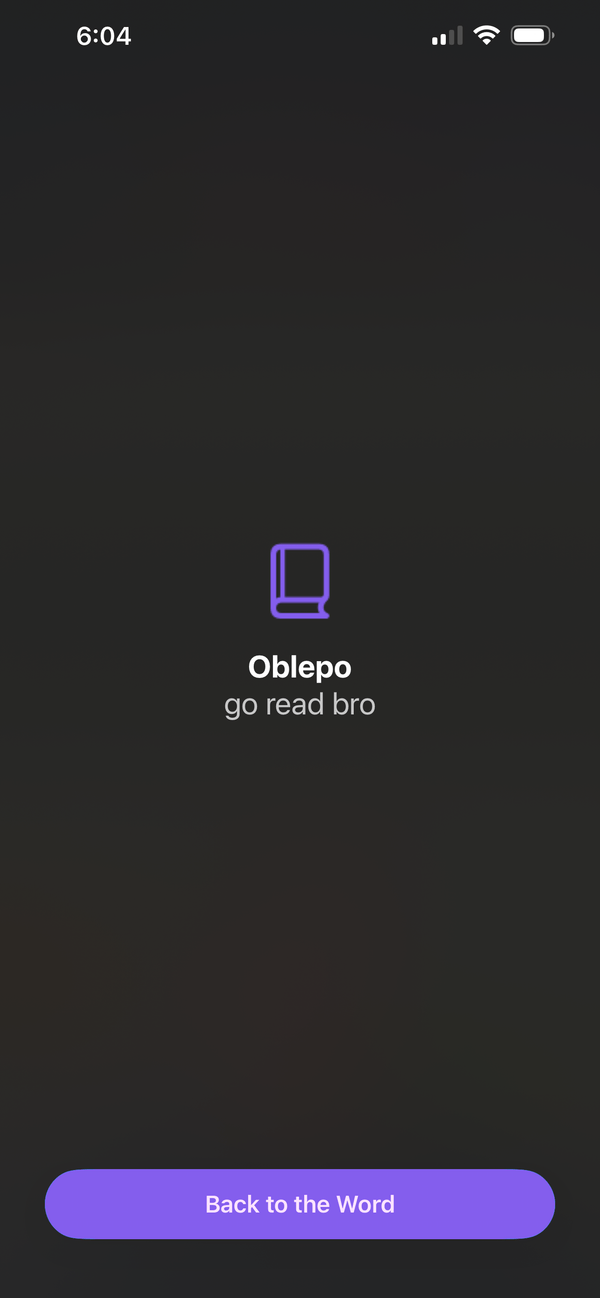
Choose what the block screen shows: a verse, today’s reading, a short prompt, your own words, or a line from your partner.
Focus modes
A mode for every part of your day
A mode for every part of your day
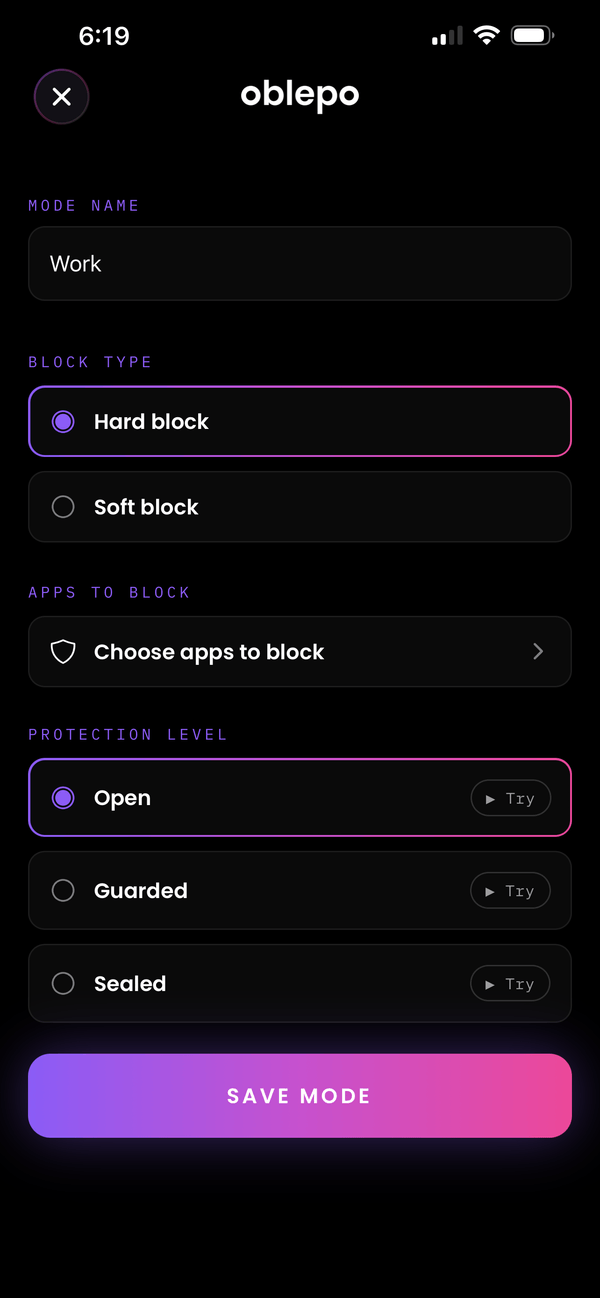
Work, dinner and bedtime each need different apps out of the way. Build a focus mode for each one, choose its apps, and make it a soft block or a hard block. Start it when you need it, or let it run on its own.
Your rules for each mode
Every mode has its own apps, its own friction or tier, and its own name.
Start one now
Run a mode for as little as 15 minutes, or leave it open-ended and stop it when you’re done.
Put it on a schedule
Weekdays, weekends, every day or your own days, with a start and end time. It runs by itself.
A heads-up first
A scheduled mode lets you know 2 minutes before it begins.
Impossible Mode
Make it impossible to give in
Make it impossible to give in
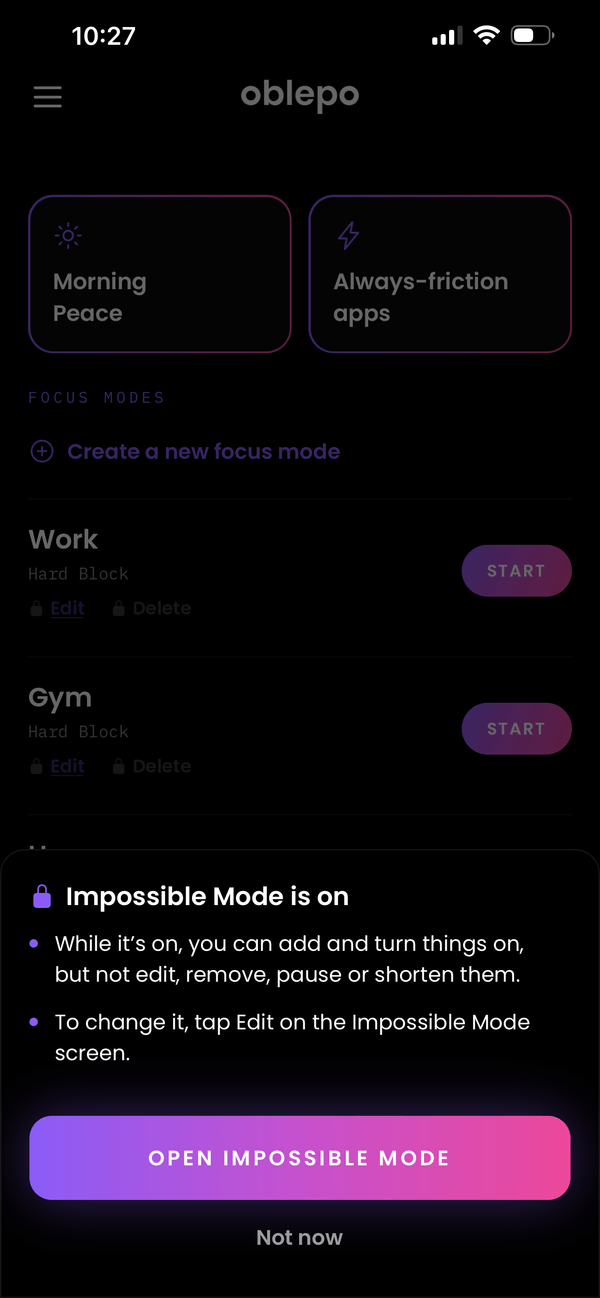
For the days you know you’ll try to undo them. Turn on Impossible Mode and your setup can only get stricter: you can add to it, but you can’t edit, remove, pause or shorten anything.
Only stricter
Add focus modes, schedules and apps, or turn things on. Editing, removing, pausing and shortening are locked.
Changes take a day
Need a change? Ask for one, and a day later you get 24 hours to make it.
Slow to turn off
Turning it off takes 48 hours. Then you have 24 hours to do it, or it stays on.
Emergencies still covered
Emergency passes keep working, and couple settings aren’t affected.
Always friction
Break the reflex
Break the reflex
Some apps don’t need a schedule. They need a speed bump all day long. Put them on your always friction list and every open starts with a pause, whether a focus mode is running or not.
A moment on every open
A friction comes first every time you open the app, so you notice whether it’s a habit or intentional.
Choose what works for you
Pick the frictions you want from the list, then use one, alternate between them, or shuffle them. Keep what actually works.
A nudge toward what’s next
After the friction, a prompt points you where you set it: a passage from your Reading List, your own message, a curated one, or a check-in with your partner.
Morning Peace
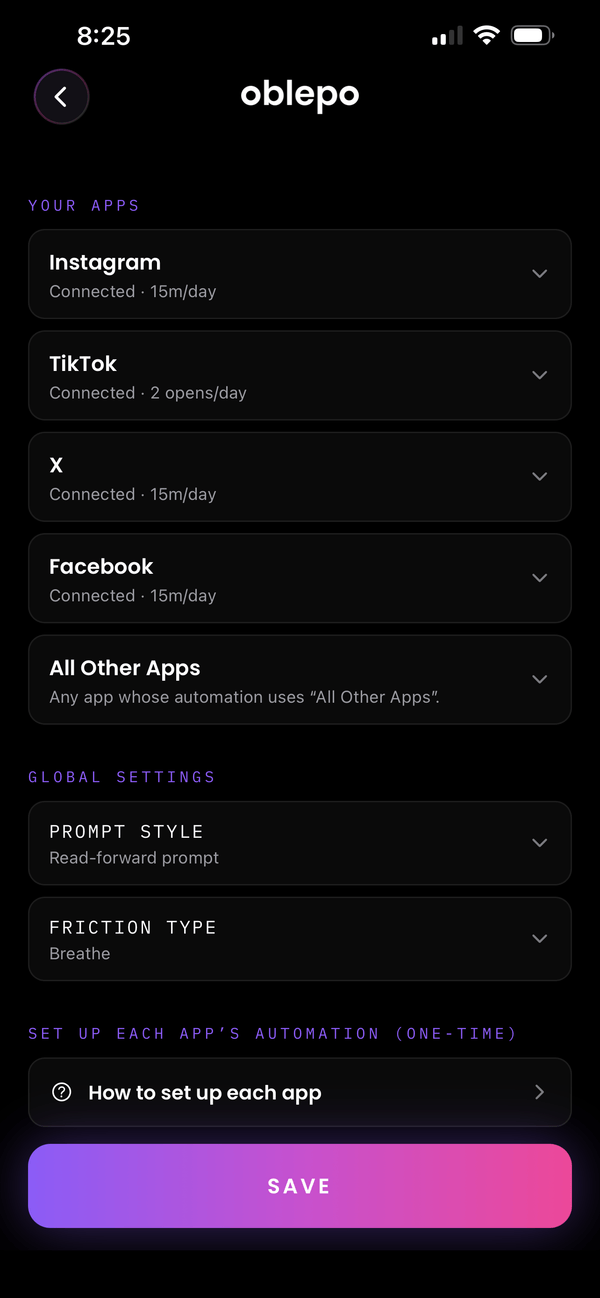
Start the day in the Word
Start the day in the Word
For most of us, the phone is the first thing we reach for in the morning. Morning Peace keeps your chosen apps closed for the first stretch of the day, setting you up for success.
Starts when your alarm stops
Stopping your alarm starts the block, or set a fixed time that you wake up at.
Your morning, your length
Choose how long your morning stays quiet.
Its own app list
Pick which apps wait until later. Everything else works as usual.
Pointed to the Word
Open a blocked app and you’re reminded to start your day in the Word instead.
Couples
Present with each other
Present with each other
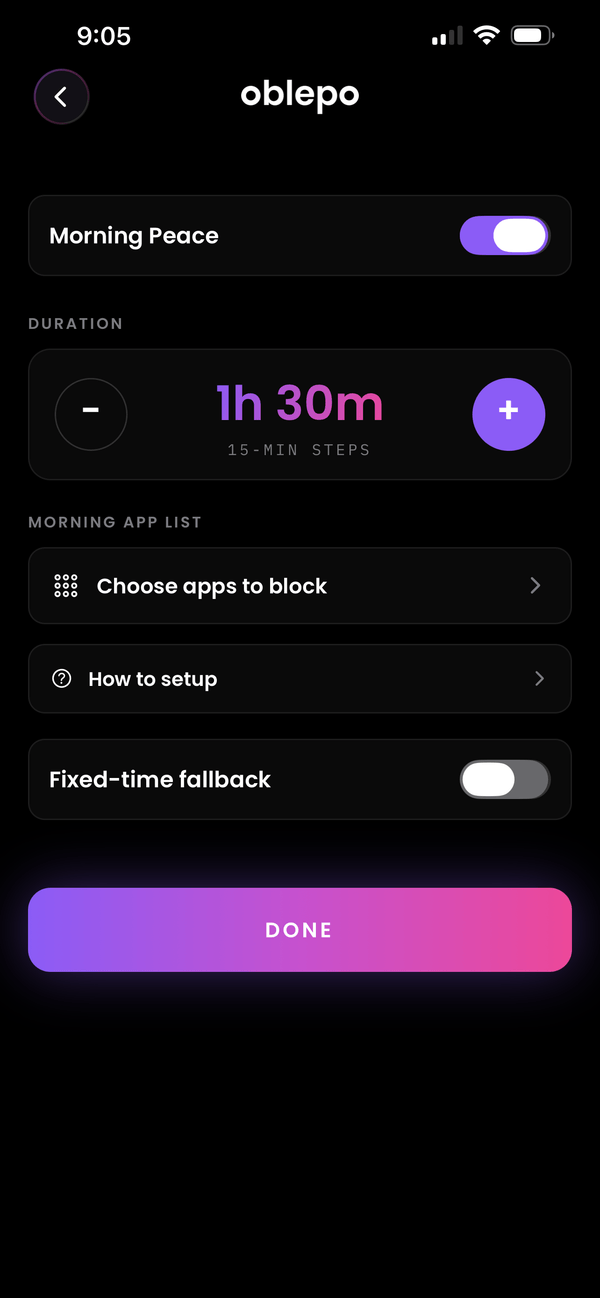
Side by side on the couch, each on your own phone. Pair with your significant other to put the phones down together and keep each other on track, with nothing changing unless you both agree.
Quality Time
Both phones block together. One of you asks and the other accepts, or it starts on both at once. Put regular times on a weekly schedule.
Read together
Share a reading plan. The streak grows on the days you both read.
A shared feed, if you want it
See each other’s reading, sessions and friction choices in one place. You choose what’s shared.
Nudges and streak saves
Send a gentle nudge, or gift a streak save when your partner misses a day.
Both of you agree
Changes to shared settings wait for a yes from each of you.
Stats
Watch the change add up
Watch the change add up
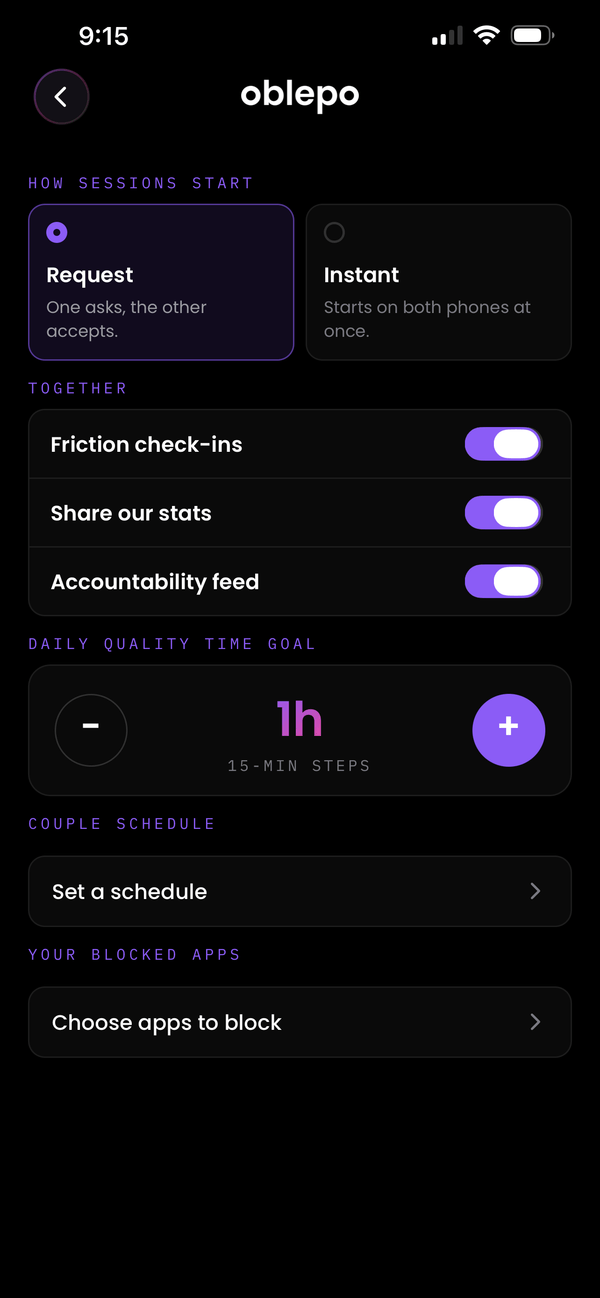
The time was always there. Your stats show where it went, and where it’s going now, so you can see the change instead of guessing at it.
Stewardship score
A daily score out of 100 from your time in the Word, time in focus, your reading plan, how often you opened problem apps, and Quality Time for couples. Emergency passes cost points.
Rings for your goals
Fill your rings for focus, time in the Word and Quality Time each day, next to the emergency passes you have left.
Streaks
Keep streaks going for your reading plan and your daily Word goal. Read ahead a day to earn a streak save.
Weekly report
A summary of your week, with your focus time compared with the weeks before. You pick the day and time it arrives.
Questions
Questions
Do I have to set up each app?
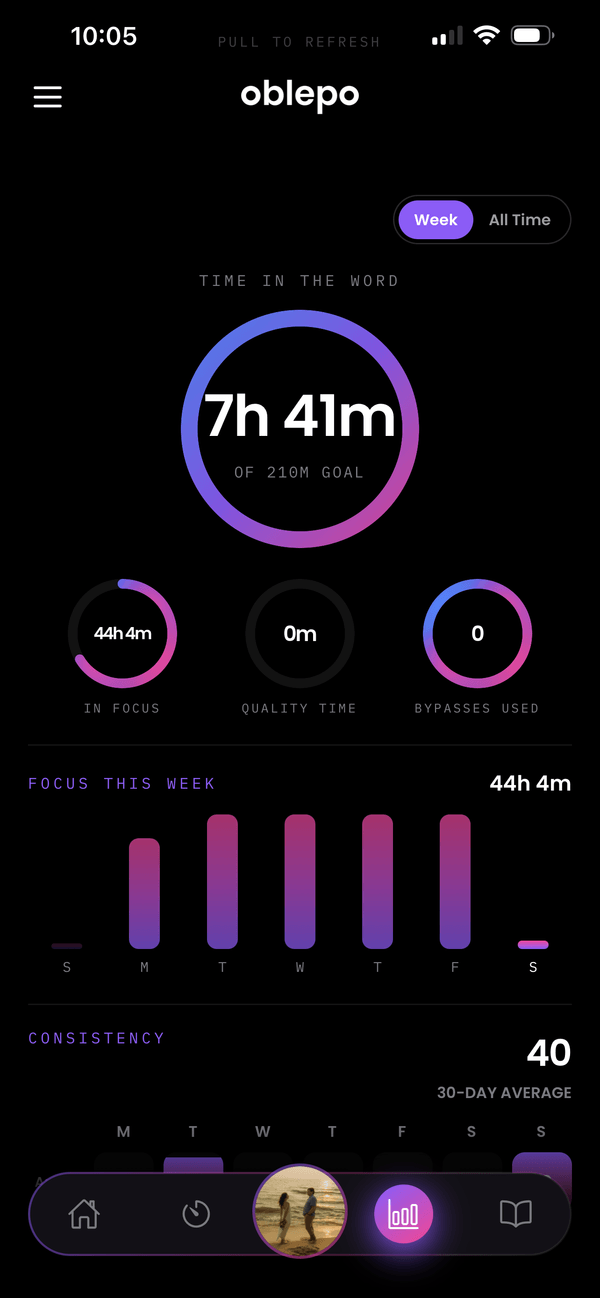
Once. On iPhone, soft blocks and always friction need a one-time Shortcuts automation for each app, and the app walks you through it. Hard blocks only need Screen Time access. On Android, oblepo uses Accessibility access instead.
Can my partner see what I do on my phone?
Only what you both choose to share, like stats and the accountability feed. Your private “why” answers are never shared, and oblepo doesn’t monitor your partner’s app usage. Unpair any time and sharing stops.
Can I try a friction before I use it?
Yes. Every friction and every protection tier has a Try button, so you know exactly what it feels like first.
What if I need an app during a Sealed block?
A Sealed block holds until the time runs out. For a real emergency, an emergency pass lifts it. If you want a way out, choose Open or Guarded for that mode instead.
Can I schedule different modes for different times?
Yes. Give each schedule a mode, the days it runs and a start and end time, like Work on weekdays from 9 to 5 and Sleep every night. Each one starts and ends by itself.
Your time is worth guarding.
Your time is worth guarding.
Download oblepo and build the tools that work for you.
iPhone Android